Password Manager Setup: What Fits in the First 30 Minutes?
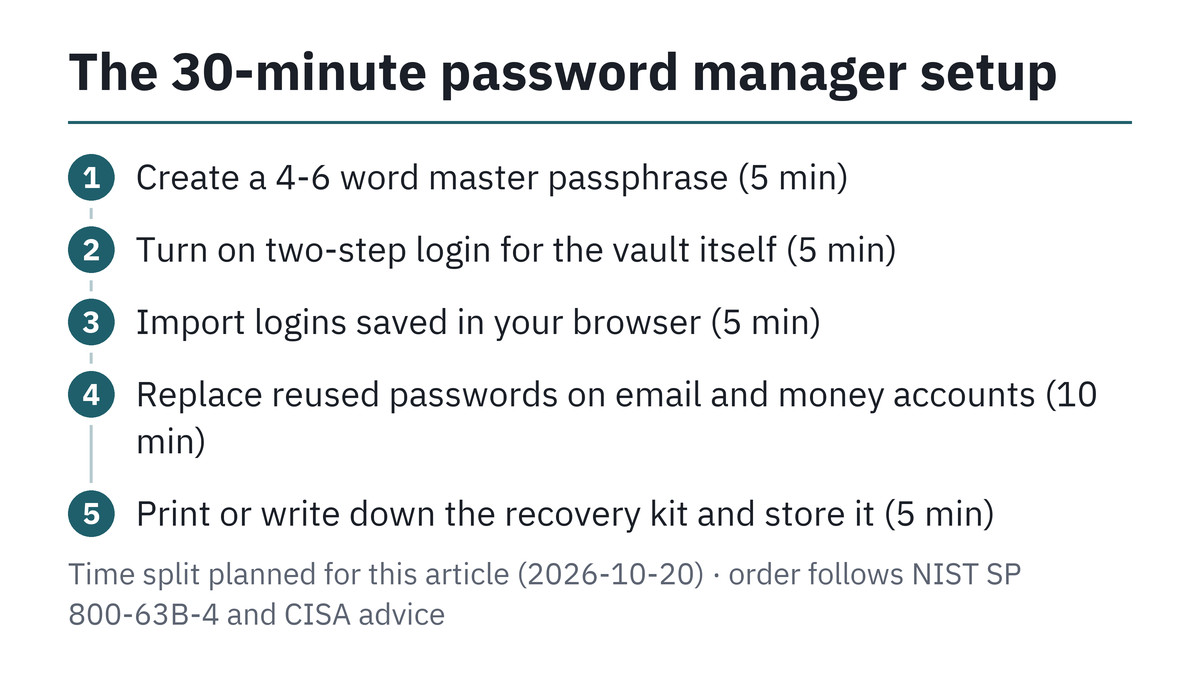
Password manager setup takes about 30 minutes if you do five things in order: create one strong master password, turn on two-step login for the vault, import the logins your browser already saved, replace the passwords you reuse on important accounts, and put the recovery kit somewhere safe. This checklist follows the current NIST and CISA password guidance and explains what to look for when choosing an app, without ranking brands.
Quick answer
5 steps, 30 min master password → two-step login → import → duplicates → recovery kit
Spend the first 30 minutes on five jobs in order: master password, two-step login, import, fix reused passwords, store the recovery kit. Everything else can wait for next week.
Time split planned for this article on 2026-10-20 · password rules from NIST SP 800-63B-4 (July 2025) and CISA guidance · passkey facts from the FIDO Alliance

Why a password manager setup beats memorizing passwords
Most people know the rule: every account should have its own long password. The trouble is the number of accounts. Email, banking, shopping, streaming, utilities, school portals and work tools add up quickly, and nobody can hold dozens of random strings in their head. So people reuse a favorite password with small changes, and one leaked site opens the door to the others.
A password manager is an encrypted vault that remembers the passwords for you. You remember one master password, and the app creates, stores and fills a different random password for each site. The Cybersecurity and Infrastructure Security Agency (CISA) puts it plainly in its advice for consumers: use a different strong password for each account, and use a password manager to make that practical.
What the current rules say about passwords
The rules many of us learned years ago, such as one capital letter, one number, one symbol and a forced change every 90 days, are no longer what the main U.S. standard asks for. NIST Special Publication 800-63B-4, finalized in July 2025, tells services to focus on length instead of composition rules. Its password section says a password used on its own should be at least 15 characters, and one used together with another factor at least 8.
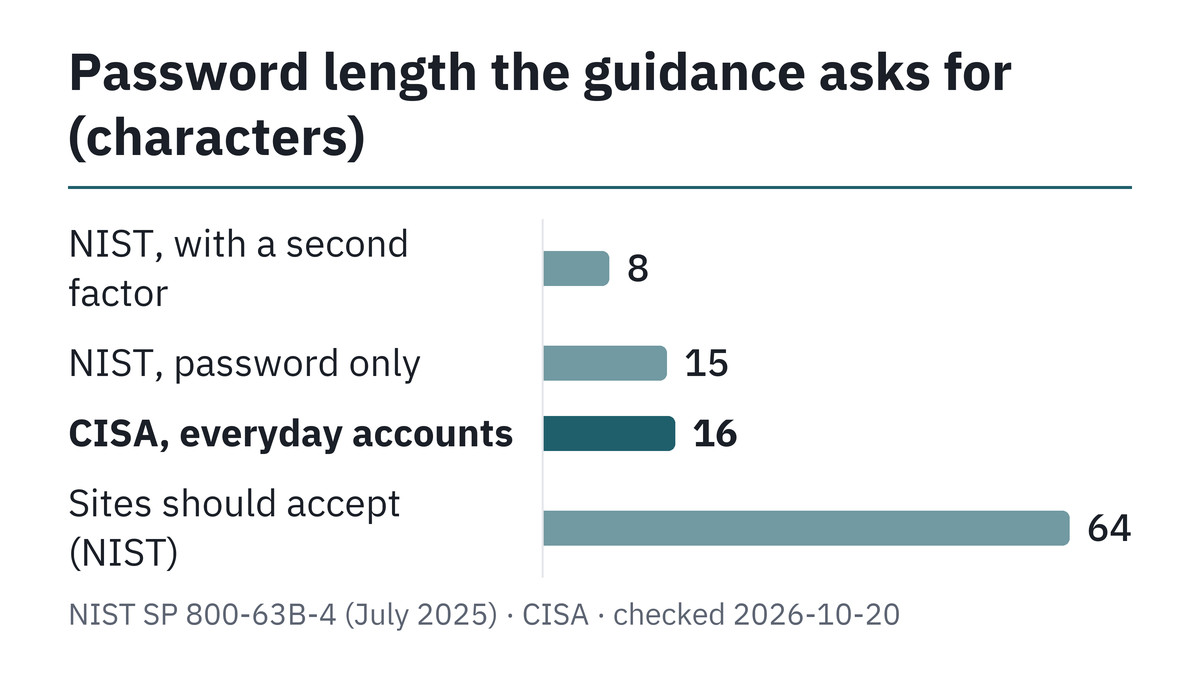
The same section says services should not force periodic changes unless there is evidence a password was compromised, should check new passwords against lists of common and breached passwords, and should allow password managers, autofill and pasting. In other words, the standard is written with password managers in mind. A long, random, unique password that you never type is exactly what it expects.
Tip · Length beats symbols A 20-character random password from the generator is far harder to guess than a short word with a symbol swapped in. Let the app pick the characters; your job is only the master password.
Choosing a password manager: five criteria, no brand ranking
There are many reputable options, including the ones built into phones and browsers and the standalone apps that work across systems. Rather than ranking products, it is more useful to check each candidate against a short list of criteria. A tool that passes all five is a reasonable choice for a beginner.
| Criterion | What to look for | Why it matters |
|---|---|---|
| Works on all your devices | Apps or extensions for every phone, computer and browser you use | A vault that only works on one device gets abandoned |
| Two-step login for the vault | Supports an authenticator app or a security key | Protects the vault if the master password leaks |
| Recovery option you understand | A recovery code, emergency kit or trusted contact feature | Forgetting the master password should not mean losing everything |
| Passkey support | Can store and sync passkeys | More sites now offer passkeys instead of passwords |
| Health report | Flags weak, reused or leaked passwords | Turns the cleanup step into a simple to-do list |
The built-in manager on your phone or browser can be enough if you live entirely inside one ecosystem. If you use an iPhone with a Windows laptop, or switch browsers often, a cross-platform app usually causes less friction. Compare the free and paid tiers of any app you consider; family sharing and file storage are common reasons to pay.
Before you install anything, check that the download comes from the official app store or the developer’s own website. The vault will hold every login you own, so an app from an unverified source is not worth the risk.
Minutes 0-10: master password and two-step login
The first ten minutes protect the vault itself. Everything you add later is only as safe as these two settings, so it is worth doing them before importing a single login.
Step 1: a master passphrase you can actually remember
The master password is the one password you will type by hand, often on a phone keyboard. A passphrase of four to six unrelated words works well: long enough to pass the 15-character mark easily, short enough to type without mistakes. Pick words that do not form a quote, a song line or anything connected to your life, and do not reuse any part of an old password.
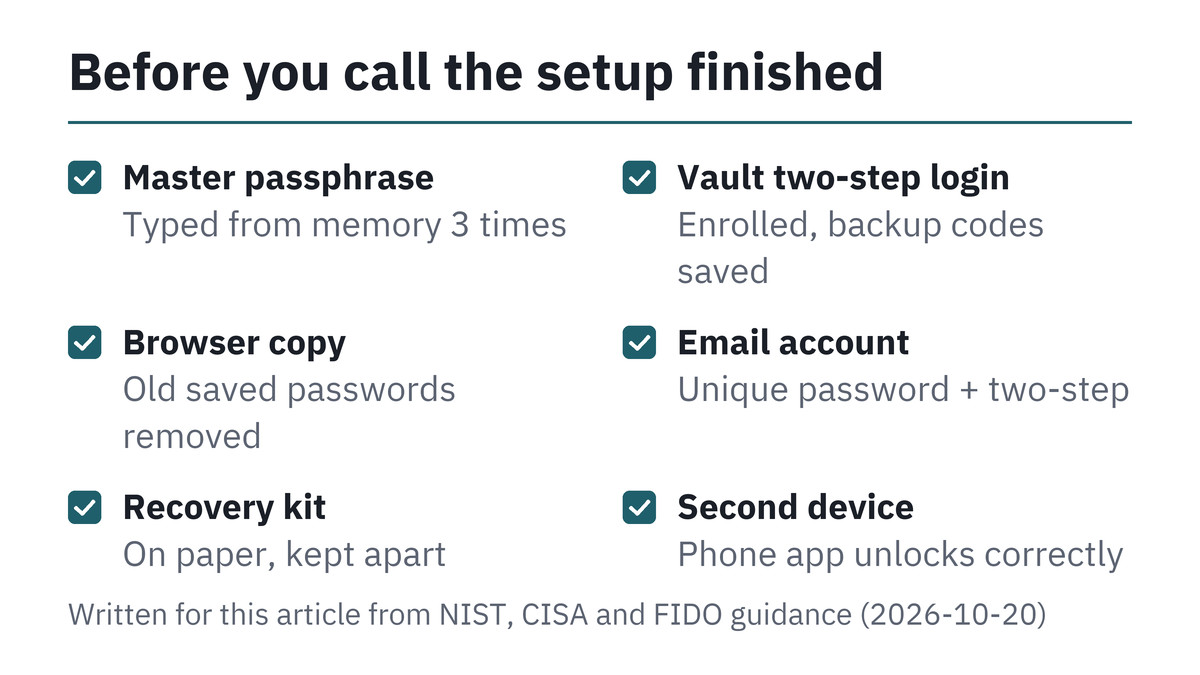
Practice typing it three times before you leave the setup screen. Then type it again tomorrow morning. Most lockouts happen in the first week, when the new passphrase has not settled into memory yet. NIST also tells services not to offer password hints, so do not write a hint into the app; write the recovery kit instead, which comes in step 5.
Step 2: two-step login on the vault
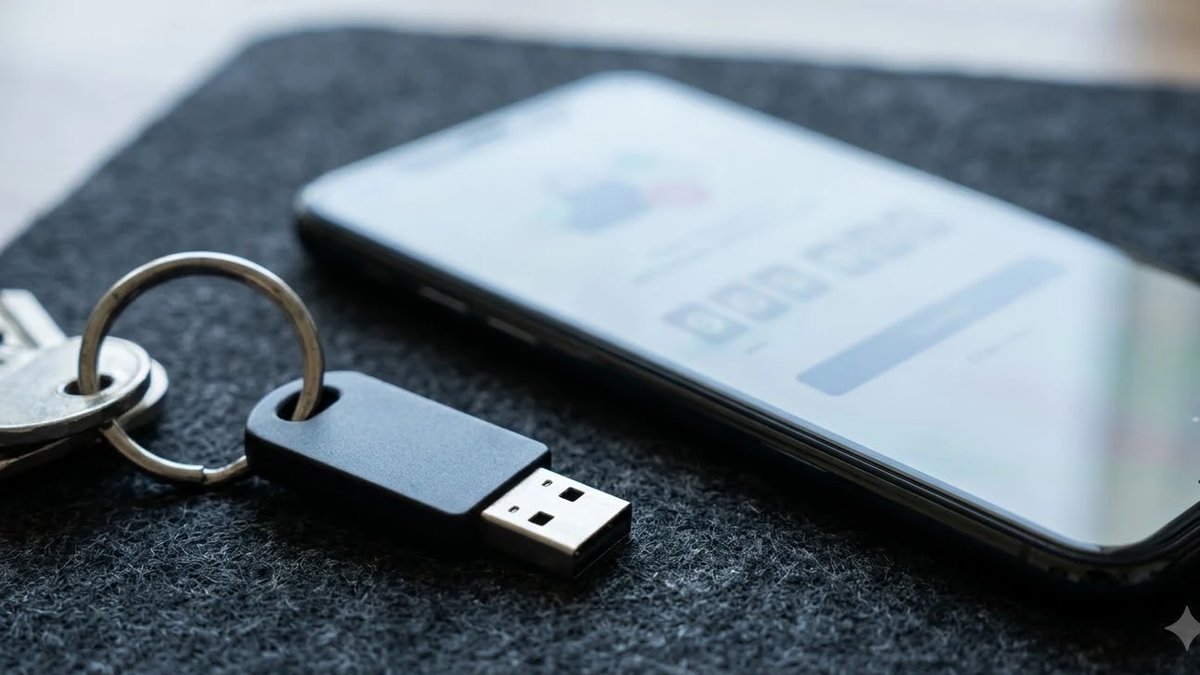
Two-step login means that knowing the master password is not enough; a second proof, such as a code from an authenticator app or a tap on a hardware security key, is also required. Turn it on in the vault’s security settings and save the backup codes the app shows you. Those codes go into the recovery kit.
Not all second steps are equal. CISA’s mobile communications guidance for highly targeted people advises moving away from text-message codes, noting that SMS messages are not encrypted and are not phishing-resistant. For an ordinary person, a text code is still much better than nothing, but an authenticator app or a security key is the stronger choice when the vault offers it.
Do not store the vault’s own second factor inside the vault
If the backup codes for the password manager live only inside the password manager, they cannot help you when you are locked out of it. Keep them on paper or on a separate device.
Minutes 10-20: import saved logins and fix reused passwords
Now the vault is protected, so it is time to fill it. Most people already have dozens of logins saved in a browser, and moving them is usually a matter of a few clicks.
Step 3: import, then remove the old copy
Look for an import option in the password manager; many can pull logins directly from a browser, and others accept a CSV file exported from the browser’s password settings. After the import, open three or four entries at random and check that the username and site address look right.
If you exported a CSV file, delete it as soon as the import is done and empty the recycle bin. That file holds every password in plain text. Then turn off the browser’s own password saving, or delete the browser copy, so you do not end up with two lists that slowly drift apart.
Step 4: replace reused passwords, starting at the top
Open the health or security report. It will usually list reused, weak and possibly leaked passwords. You do not need to fix all of them today. Ten minutes is enough for the accounts that matter most, in this order: your main email account, banking and payment accounts, your phone carrier account, and the cloud storage that holds your photos and documents.
Email comes first because it is the master key to everything else: almost every site sends its password reset link there. For each account, sign in, choose change password, let the generator create a long random password, and save it into the vault before you close the page. If the site offers two-step login, turn it on while you are already in the settings.
| Priority | Account type | Why first |
|---|---|---|
| 1 | Main email | Password resets for other sites arrive here |
| 2 | Bank, card and payment apps | Direct access to money |
| 3 | Phone carrier | Controls the number that receives text codes |
| 4 | Cloud storage | Holds photos, IDs and scanned documents |
| Later | Shopping, streaming, forums | Fix a few each week from the health report |
Minutes 20-30: recovery kit and passkeys
The last block of time covers the two things beginners skip most often: a way back in if something goes wrong, and a look at passkeys, which are slowly replacing passwords on many sites.
Step 5: store the recovery kit away from the computer
Many password managers offer an emergency kit, a recovery code or a trusted contact feature. Whatever form yours takes, the idea is the same: if you forget the master password or lose the device with the second factor, this is how you get back in. Some services cannot reset a forgotten master password at all, because they never see it.
Write or print the recovery information and keep it with other important papers, such as a passport or a property deed, somewhere fire-safe if possible. Do not leave it as a photo in your camera roll or a note on the same laptop. If someone in your household should be able to reach your accounts in an emergency, tell them where the kit is kept.

What passkeys change
A passkey is a sign-in credential built on FIDO standards. Instead of a secret you type, your device holds a private key and proves it to the site, usually after you unlock with a fingerprint, face or device PIN. The FIDO Alliance describes passkeys as always strong and phishing-resistant: there is no password to type into a fake page and nothing reusable for a site to leak.
Passkeys can be synced across your devices through a passkey provider, or bound to one device such as a hardware key. If your password manager supports passkeys, it can act as that provider, so a passkey created on your laptop also works on your phone. When a site you use offers to create a passkey, accepting it inside the password manager keeps everything in one place.
Where to start, depending on your situation
| Situation | Start with | Watch out for |
|---|---|---|
| One phone and one browser from the same company | The built-in password manager | Moving away later takes an export |
| Mixed devices (for example iPhone and Windows) | A cross-platform app with browser extensions | Install it on every device on day one |
| Shared household accounts | A plan with shared vaults or folders | Decide who can edit shared items |
| Older relative who forgets passwords | A simple app plus a printed recovery kit | Keep the kit where family can find it |
Planning examples written for this article (2026-10-20) · not a product ranking · check each app against the five criteria above
Common setup mistakes and how to avoid them
Most problems with password managers come from the first week, not from the encryption. These are the patterns that cause lockouts or leave gaps.
- Choosing a master password that is too clever to remember, then losing access on day three
- Leaving the exported CSV file in the downloads folder after the import
- Keeping the browser’s password list switched on, so new logins are saved in two places
- Turning on two-step login without saving the backup codes anywhere outside the vault
- Trying to fix every weak password in one evening and giving up halfway through
- Installing the app only on the computer, so logins on the phone still happen by memory
The cure for most of these is pacing. The 30-minute setup covers the vault and the accounts that matter most. After that, set a reminder for ten minutes once a week and work down the health report. At ten minutes a week, a list of 40 reused passwords shrinks steadily without any single long session.
If you share accounts with a partner or family, such as a streaming service or a utility login, use the manager’s sharing feature rather than sending passwords over chat. A shared item updates for everyone when the password changes, and nobody has to copy it out of a message thread. The same habit of keeping sensitive files on your own device applies to documents too; see how to merge PDF files without uploading them to a website.
Sources checked · 2026-10-20 checked
- NIST SP 800-63B-4: Authentication and Authenticator Management (July 2025) · NIST
- CISA: Use Strong Passwords · CISA
- FIDO Alliance: Passkeys · FIDO Alliance
- 30-minute setup plan split into five timed steps and a priority order for replacing reused passwords, worked out 2026-10-20 · 5 + 5 + 5 + 10 + 5 = 30 minutes
- CISA mobile guidance for highly targeted people advises movi · cisa.gov
FAQ
What happens if I forget my master password?
Can a password manager be hacked?
Should I still change my passwords every few months?
Do I still need a password manager if I use passkeys?
In three lines
- Protect the vault first: a 4-6 word master passphrase and two-step login with backup codes kept outside the vault
- Import browser logins, delete any exported file, then replace reused passwords starting with email and money accounts
- Keep the recovery kit on paper, add passkeys where sites offer them, and clean up a few weak passwords each week
By Jay · Runs the JLOGUE everyday guides · checks official sources
Checked NIST SP 800-63B-4, CISA password and mobile guidance, and the FIDO Alliance passkey page (2026-10-20) · Draft assisted by AI; figures, tables and links checked by hand.